
Library folders
Internal vault, your download path, and how the library discovers files.
Download directory
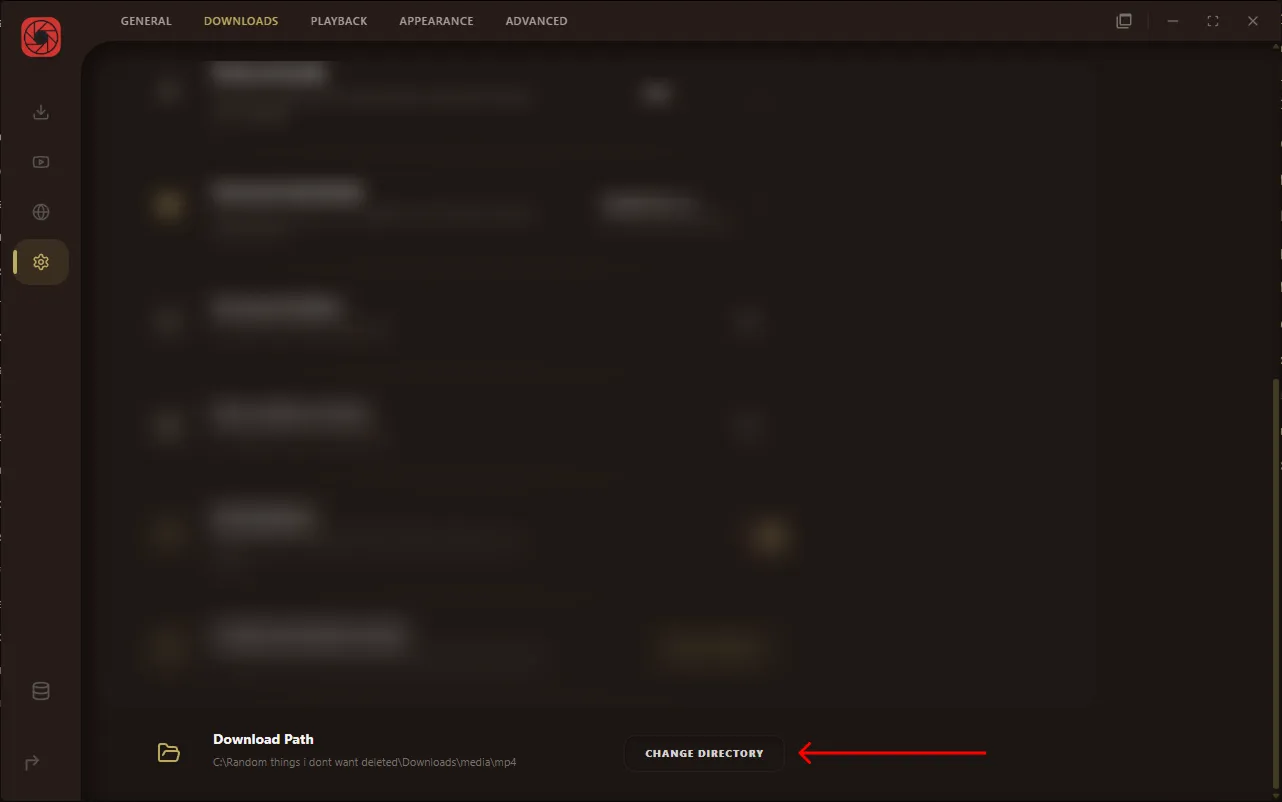
By default, RuForge saves everything to your Windows Downloads folder. You can change this at any time.
- Open Settings from the left sidebar.
- Go to the Downloads tab.
- Click the folder path next to Output folder to pick a new location.
All future downloads go to whatever folder you choose here. Existing files stay where they are. The media library scans both the old and new locations, so nothing disappears from your library when you switch.
Internal vault and download path
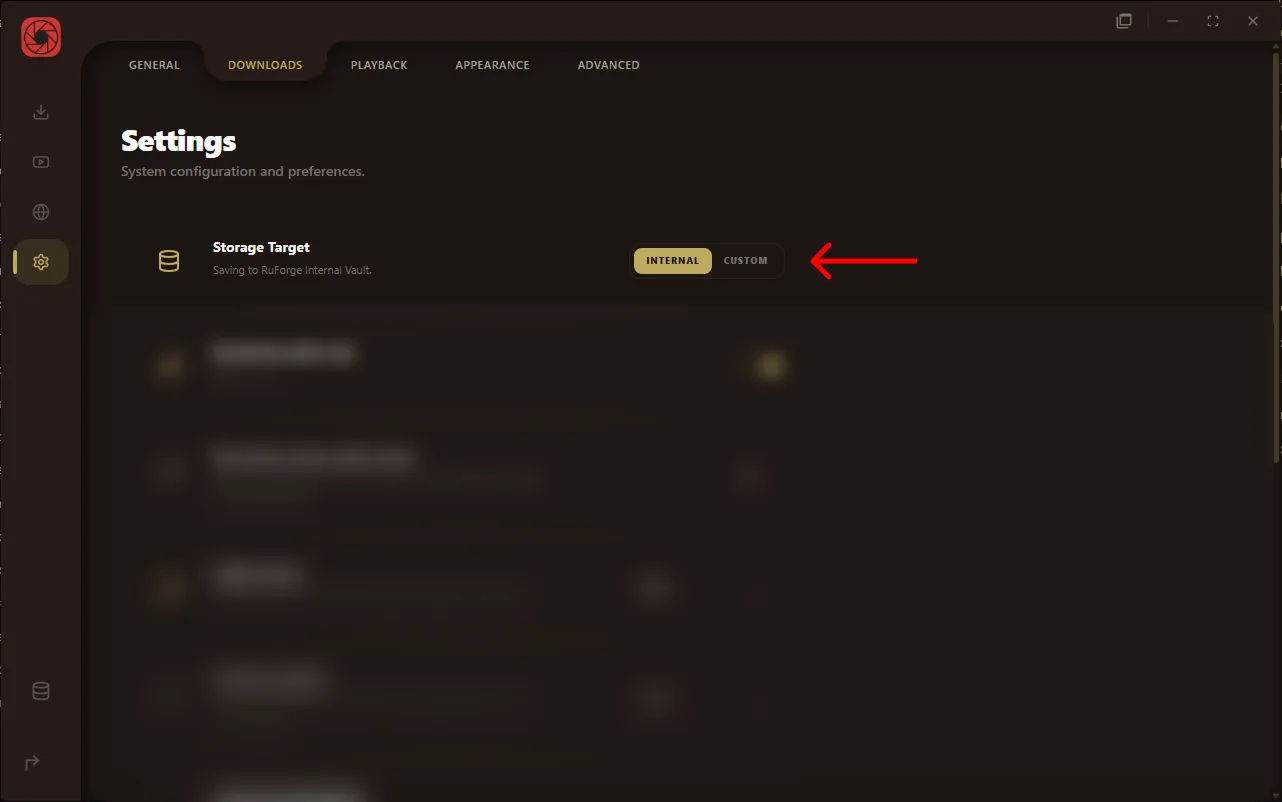
RuForge stores files in two places. Both are scanned every time the library refreshes, so everything shows up in one combined view.
- Open Settings from the left sidebar.
- Go to the Downloads tab.
- The Storage Target row has an Internal / Custom toggle. Pick the one you want.
- If you chose Custom, click the folder path below to pick a specific directory.
- Internal vault: A folder RuForge manages automatically inside its own app data directory. When you choose Internal in the Downloads settings, new downloads land here.
- Custom download path: Any folder you pick on your machine. When you choose Custom in the Downloads settings, new downloads go to this folder instead.
To switch between the two storage modes:
Switching storage targets does not move or delete existing files. Your old downloads stay where they are and still appear in the library, because both locations are always scanned.
Scan behavior
RuForge scans both storage locations (internal vault and your download path) for supported media files. Here is how the scan works:
- The scan runs automatically when the app starts and after every finished download.
- It looks for common video formats (MP4, MKV, WebM, AVI, MOV) and audio formats (M4A, MP3, OGG, FLAC, WAV).
- For each file, it checks for a matching
.info.jsonsidecar. If one exists, the library uses its title, thumbnail path, chapters, and source URL instead of guessing from the filename. - Duplicate entries (same source ID or matching title from different scan passes) are merged so you do not see the same video twice.
You can manually refresh the library at any time by pulling down or clicking the refresh button in the Media Library tab.
Case and extensions
The library scanner normalizes every file extension to lowercase before checking it. Video.MP4 is treated exactly the same as video.mp4.
This matters because iPhones, GoPros, and older cameras save files with uppercase extensions like .MOV or .Mp4. RuForge handles all of them.
Any casing variant of a recognized extension will match. .MP4, .Mp4, .mP4 are all the same to the scanner.
| Type | Recognized | Not recognized |
|---|---|---|
| Video | .mp4 .mkv .webm | .avi .mov .ts .3gp .wmv |
| Audio | .mp3 .m4a .flac .opus .ogg | .wav .aac .wma .aiff |
Why are some common formats not recognized?
RuForge targets the formats YouTube and yt-dlp actually produce (.mp4, .webm, .mkv, .m4a, .opus). Containers like .avi, .mov, .wav, and .ts are rarely output by yt-dlp and would add scan overhead for minimal benefit. If a file you expect is missing from the library, check its extension.