Paste a URL, pick a format, and watch the queue process your first video.
Paste a link
Downloading a video is the main thing RuForge does, and it starts with a URL.
Copy a YouTube video link from your browser. Any standard youtube.com/watch?v=... or youtu.be/... link works.
In RuForge, click the URL input field at the top of the Downloader tab (or just press Ctrl+V anywhere on the page).
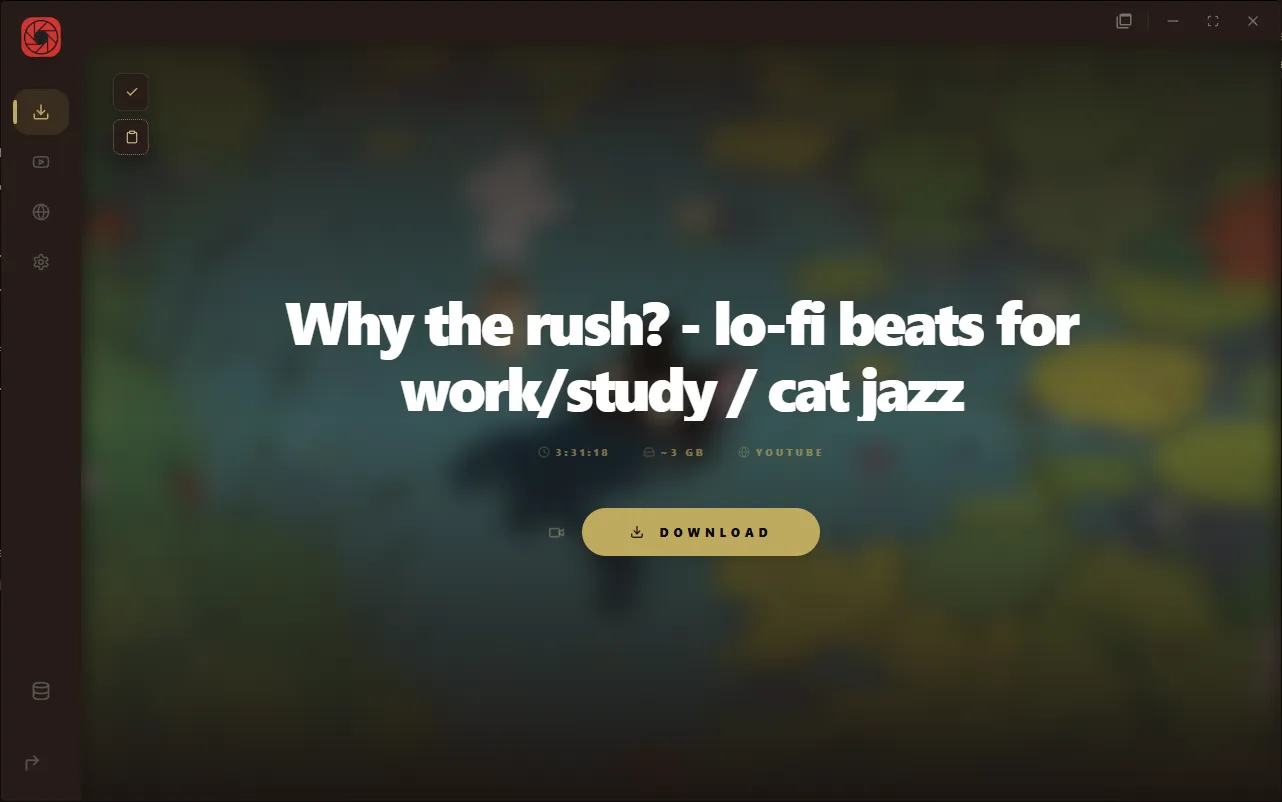
Paste the link. RuForge immediately starts fetching the video metadata: title, thumbnail, and estimated file size.
You will see the video title and thumbnail appear in the hero area within a few seconds. The size estimate shows how much space the download will take on disk.
Choose format
Before you hit download, you can choose what format you want.
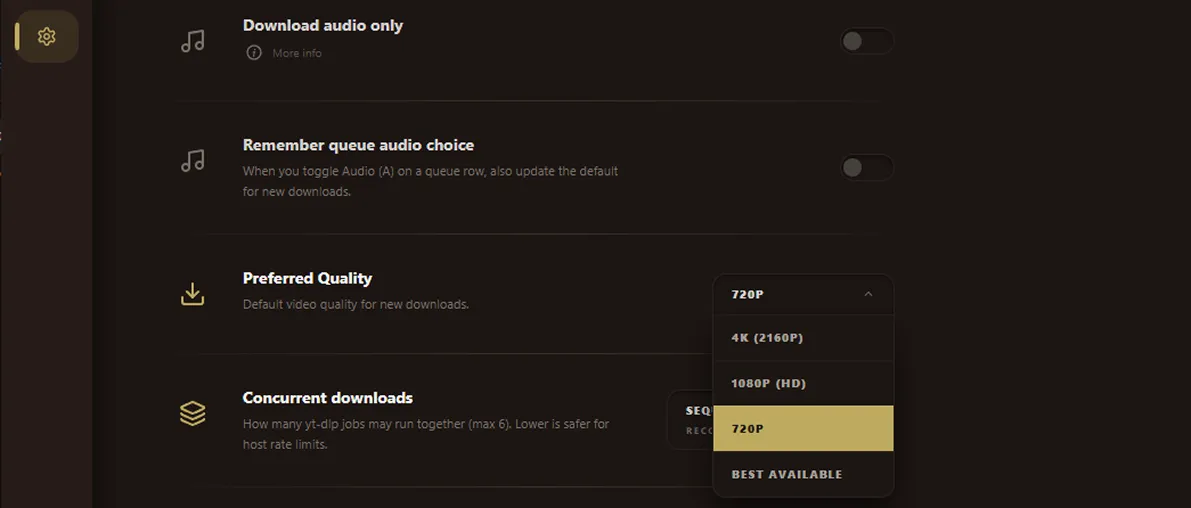
Video (default): Downloads the best available video and audio, muxed into a single file (usually MP4). This is what most people want.
Audio only: Extracts just the audio track as an M4A file. Much smaller file size, perfect for music or podcasts.
Toggle between Video and Audio using the switch next to the download button. The size estimate updates immediately so you can see the difference before committing.
Watch progress
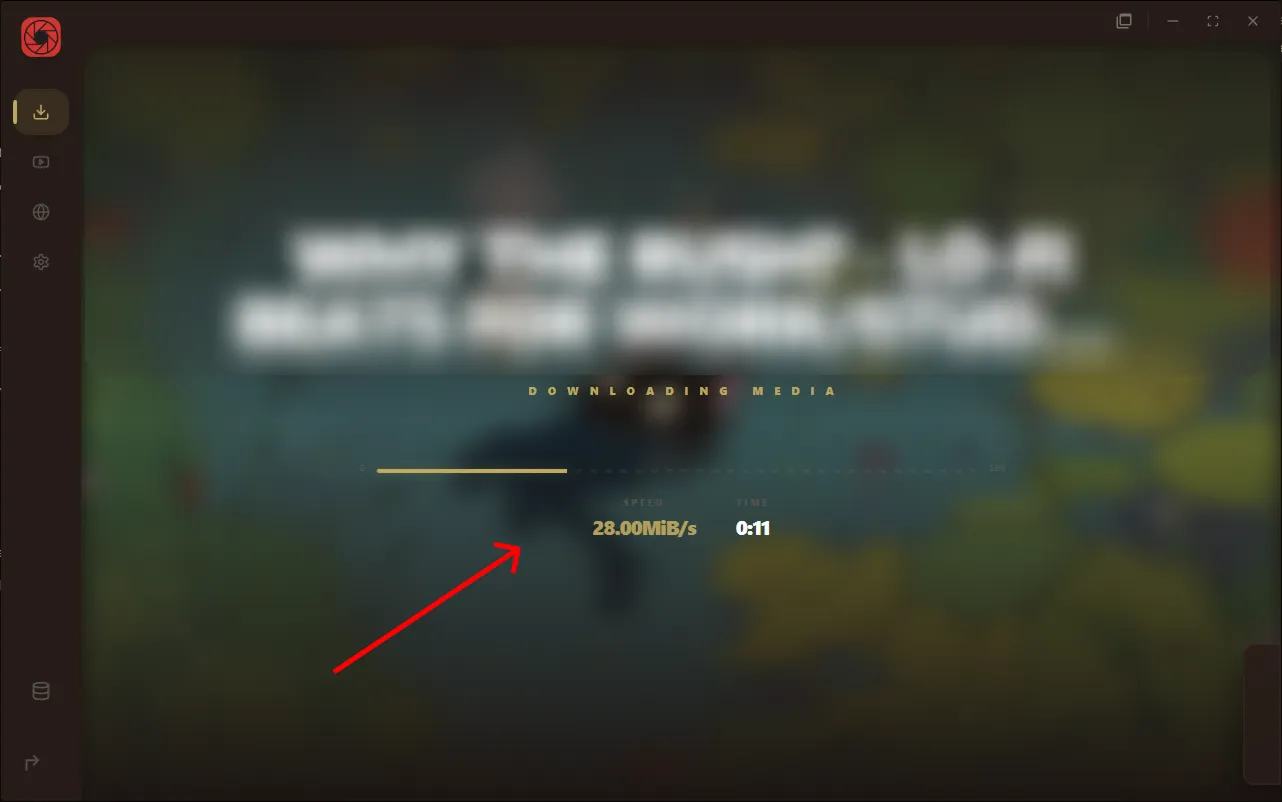
Once you start the download, the hero area turns into a live progress display.
A progress bar shows how far along the download is, with percentage markers at each end.
Download speed and estimated time remaining appear below the bar.
If the video needs post-processing (like merging separate video and audio streams), the status changes to "Processing..." while ffmpeg handles the mux.
You can keep using the app while downloads run. The floating queue drawer in the bottom-right corner shows all active and queued jobs. Click it to expand and see thumbnails, titles, and individual progress for each download.
Find it in your library
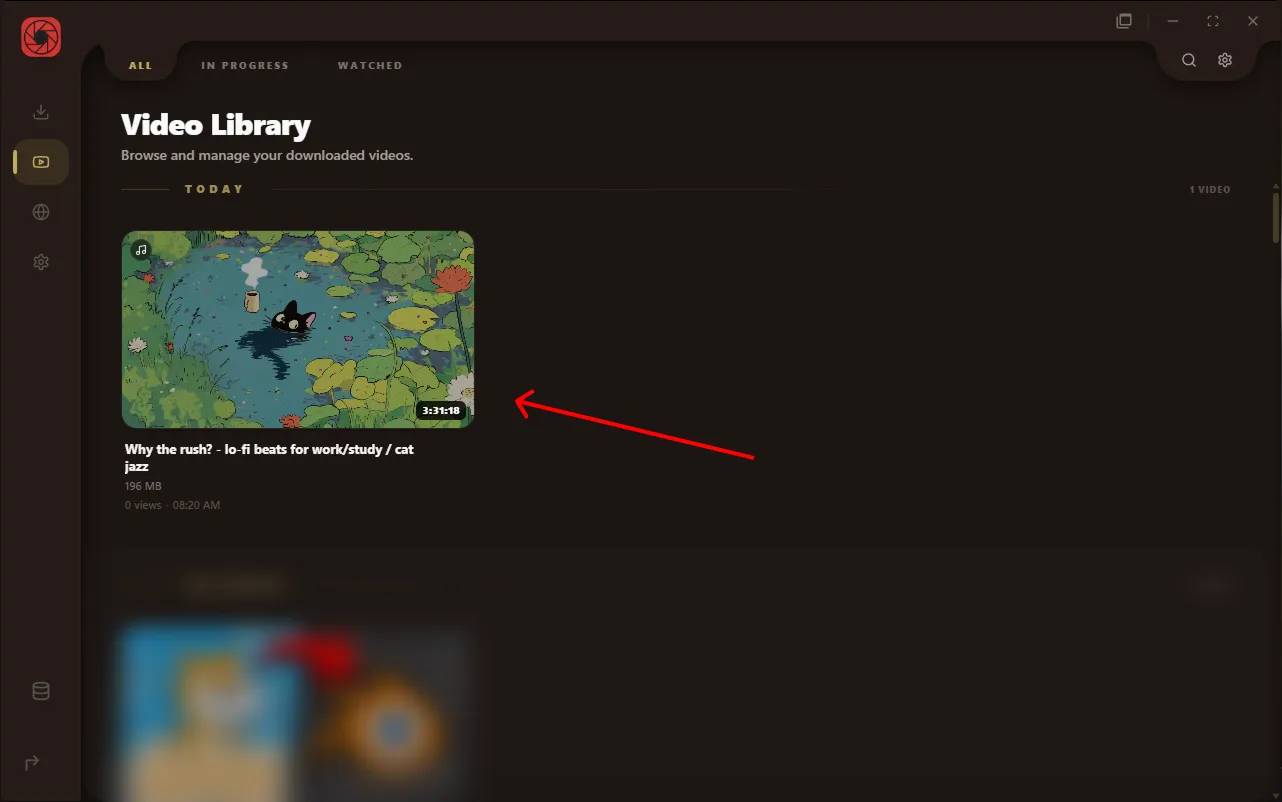
When a download finishes, the file lands in your download folder and immediately shows up in the Media Library tab.
Click Media Library in the left sidebar.
Your new download appears as a card with a thumbnail, title, and duration.
Click the card to open it in the player. That is it.
If you downloaded a playlist, the videos are grouped together as a stack card in the library. Click the stack to expand it and see individual items.
{"job":"A single download task. Paste a URL and click download to create one.","queue":"The list of all active and pending download jobs, visible in the floating drawer.","hero":"The large progress area at the top of the downloader showing the focused job.","stall watchdog":"Background timer that kills stuck downloads when no data arrives for too long.","processing":"Post-download phase where ffmpeg merges video and audio streams or extracts audio.","entry":"A single item in your media library (standalone file or playlist collection).","playlist collection":"A group of files downloaded together as a playlist, shown as a stack card.","gallery":"Another name for the media library grid.","scan root":"A folder the library watches for media files. Always two: internal vault and download path.","card":"The visual tile in the library grid showing thumbnail, title, duration, and progress.","sidecar":"A companion file that stores metadata about a downloaded video.",".info.json":"Created by yt-dlp during download. Contains title, uploader, chapters, and source URL.",".sponsorblock.json":"Stores SponsorBlock segments and chapters so they are not re-fetched every play.","sprite sheet":"Grid of thumbnail frames from ffmpeg, used for hover previews on the scrub bar.","poster":"Single-frame thumbnail from ffmpeg, used as cover art when no yt-dlp thumbnail exists.","player":"The built-in video/audio player with chapters, subtitles, and SponsorBlock overlays.","mini player":"Separate borderless window that floats on top of other apps, resizable from large to tiny.","control dock":"Frosted bar at the bottom of the player with play/pause, volume, and loop.","chapter scrubber":"Segmented progress bar dividing the video into chapters from yt-dlp metadata.","auto-advance":"When a video ends, automatically plays the next file in the folder or library.","scrub preview":"Thumbnail images that appear on hover over the progress bar (from sprite sheets).","internal vault":"Folder RuForge manages inside its app data directory for storing downloads.","download path":"The custom folder you pick for new downloads (alternative to internal vault)."}